Three big jobs, done the right way setting up Salesforce, Slack and Field Service
Some jobs have a right way to do them and a lot of ways to get them wrong. For these three, Romy has a playbook built from Salesforce's and Slack's own guides and from real setups. Ask in your own words, SKILL ACTIVATED lands in the chat, and Romy works through it with you, on your own records.
You ask the way you'd ask a person the playbook comes to you
Nobody picks a skill from a menu. Type what you want in any chat, or in the box that starts a project, and Romy opens the right playbook. The card tells you the moment it does.
It works with you, a step at a time
A question or two at a time, in your words. What you ask for is the scope: “just Slack alerts” gets Slack alerts, not a whole rollout.
It reads today's docs first
Each playbook says when it was written. Salesforce changes three times a year, so Romy reads Salesforce's or Slack's current page for the piece it's about to build.
It shows you each piece working
On your real records, in the browser beside the chat. The plan sits in the Plan tab and ticks off as it goes.
Your words, not Salesforce's
Each playbook carries a list of Salesforce's terms and the plain ones. A Work Order is “the job”. An Opportunity is “a deal”.
Test records, then a clean-up
Everything it tries is clearly named as a test, with your own email on it, and taken away afterwards. Or one stays as an example, if you'd like.
It ends with guides for your team
A guide for each person who uses it and for whoever changes it later, kept in Files, plus a plain list of what's set up.
Quick startSkill
New to Salesforce? it sets it up around your business
Quick start is for a business that's never had Salesforce, or has one sitting empty. Romy learns how your days run, recommends where to start, and builds your Salesforce a piece at a time, in your brand, with your own customers in it.
Where do we start?
The question, in short, from a lumber yard new to Salesforce. Here is what Romy said back.
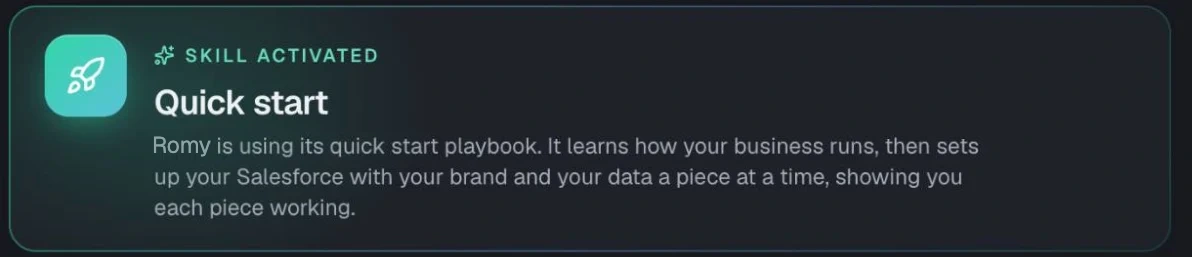
Skill activated
Quick start
Romy is using its quick start playbook. It learns how your business runs, then sets up your Salesforce with your brand and your data a piece at a time, showing you each piece working.
A recommendation built from your business, not a template
Romy started where the reps spend the most time and mistakes come easiest, said why in the yard's own terms, then asked for what it needed to build it on their real prices.
What a first setup can cover. You pick; the plan comes from talking.
- Your logo and colours
- Your sign-in page
- Time zone, currency, business hours
- Customers and the people at each
- Deals, quotes or jobs
- Pages and saved lists
- Things that run by themselves
- Your spreadsheet brought in
- Your team and who sees what
- Reports and a dashboard for each role
- The phone app
- Guides for each role
Where I'd start: quoting. Your reps spend the most time on quotes, and board feet are the easiest place to make a mistake.
- 1.Your product list with board-foot pricing.
- 2.A quote screen that does the maths. A rep picks “2×6, 12 ft, qty 40” and Salesforce works out the board feet and the price.
- 3.A quote PDF with your logo.
- 4.Around that: your customers and the people at each one, plus a list of open quotes for each rep.
Then it asked for
- Which Salesforce to build in
- Your quoting spreadsheet
- How you price crates and pallets
- Your website
What Quick start does from the first hello to the hand-over
A first setup runs over several sittings. A project keeps its notes, so every chat in it picks up where the last one stopped, and the Plan shows where things stand. Ask other things along the way: Romy does those too, then says where the setup is.
It starts from your website
Romy read your website when you signed up: your logo, your colours, your photos, your own words. It opens with what it found, and you correct anything that's off.
It learns how your day runs
What you sell, who for, how work comes in, who does what, what's painful today. A question or two at a time, and nothing your website already answered.
It recommends, it doesn't hand you a menu
“For a company like yours I'd set it up like this”, with why in your terms: fewer clicks for the office, nothing lost between the call and the job. The milestones go in the Plan.
It asks for your data early
A spreadsheet, an export from your old system, even your phone's contacts. Your own records make every screen real. With none, it uses clearly marked samples and clears them at the end.
Each milestone: built, shown, walked through
Built on your records, opened in the browser beside the chat, then one real moment from your week walked through it. You can click through it yourself. What the walk shows is missing gets fixed.
Then it hands it over
A guide for each role, a training video if you want one, your team invited when you say so, and a plain list of everything that's set up.
From the playbook
Learned the hard way, so you don't have to
A first screen with one record looks broken
Lists of one, empty boxes, a dashboard of zeros. So your data, or clearly marked samples, goes in before Romy says “look at this”.
Salesforce emails people the moment they're added
A new user gets a sign-in link straight away. So when your team is invited is your call: now, or once it's ready.
The admin sees everything
A screenshot as the admin isn't what your office manager sees. Romy shows you their view by signing in as them, where your Salesforce allows it.
A new look isn't on until it's switched on
A Salesforce theme only shows once it's activated, and the app's own colour and logo are set on the app itself. Romy does both.
SlackSkill
Slack, set up the way you asked you sign in beside the chat, Romy builds the rest
Alerts when something happens in Salesforce, request forms, approvals from your phone, a channel for each big customer. Romy asks what you want Slack to do, has you sign in, then builds just that with you, and tries every alert before you rely on it.
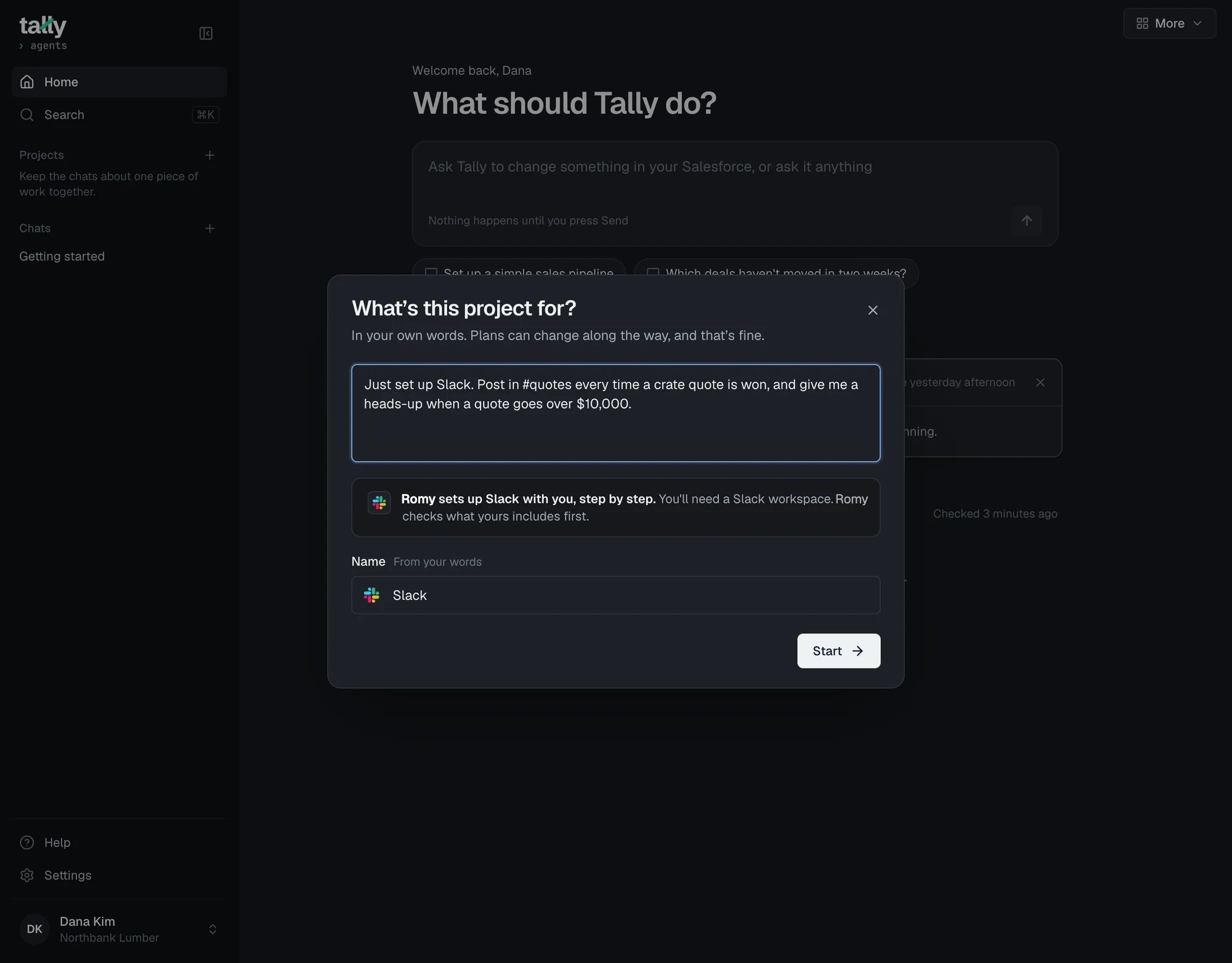
“Just set up Slack. Post in #quotes every time a crate quote is won, and give me a heads-up when a quote goes over $10,000.”
Dana at Northbank Lumber, in the box that starts a project.
What’s this project for?
In your own words. Plans can change along the way, and that’s fine.
Romy sets up Slack with you, step by step. You'll need a Slack workspace. Romy checks what yours includes first.
Name
Slack
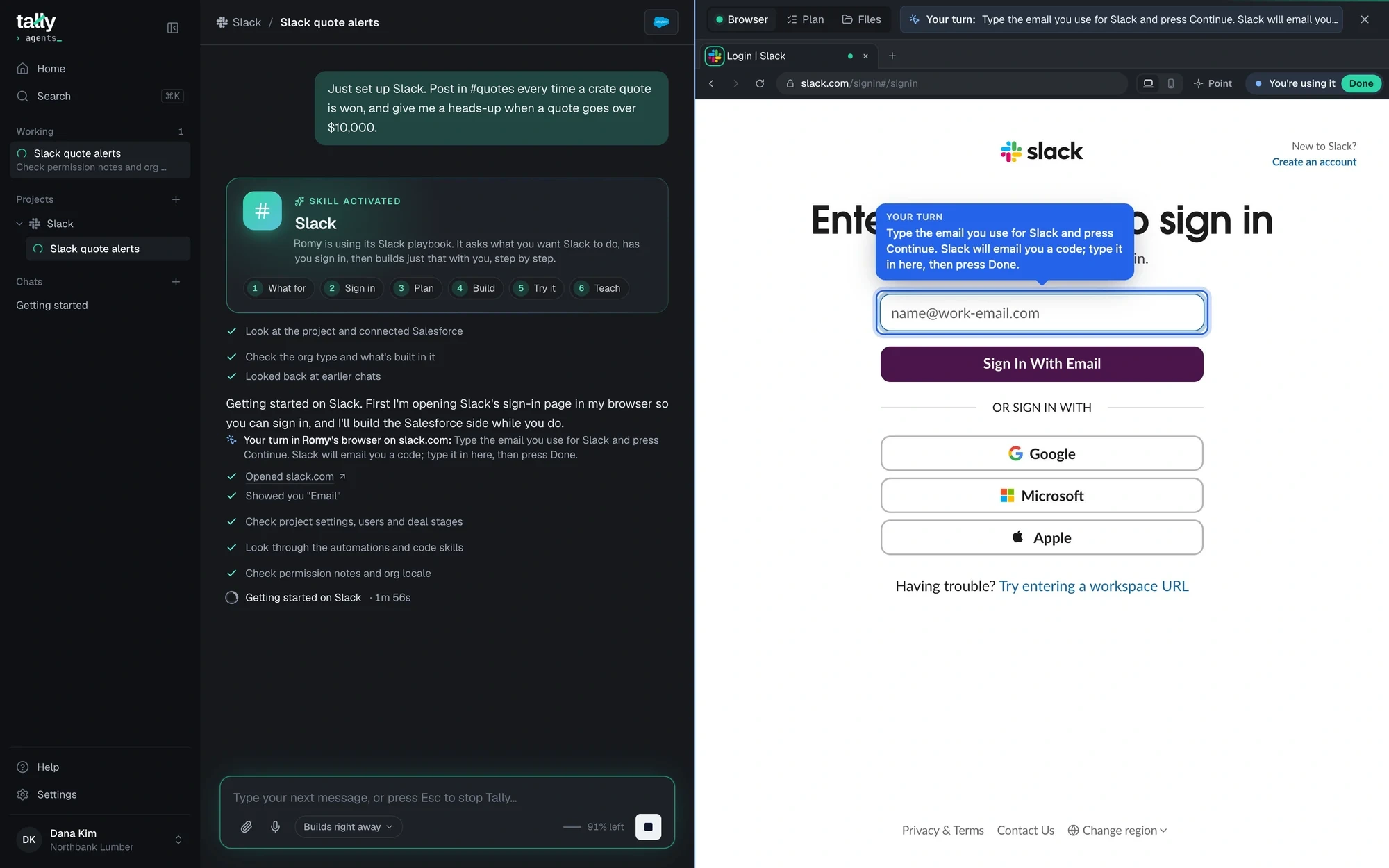
What the Slack skill does and how it proves each piece works
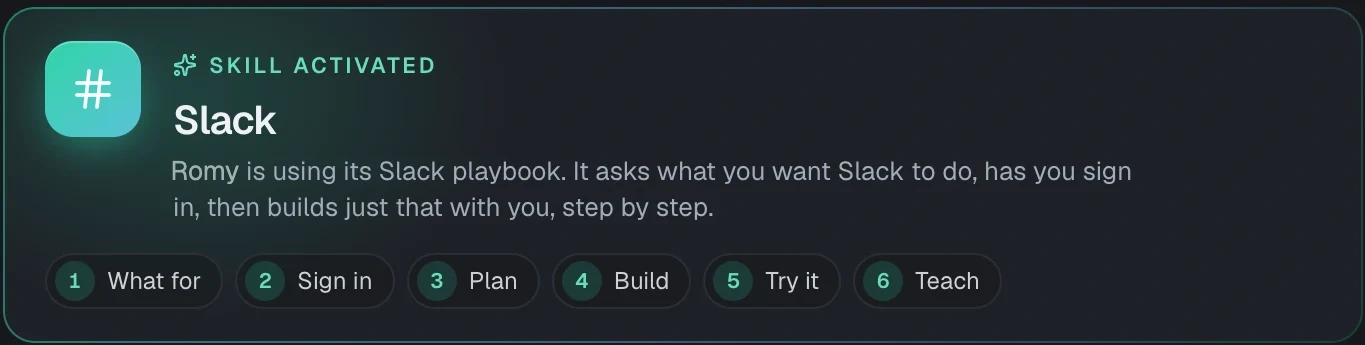
The card's six steps are the order it goes in: what for, sign in, plan, build, try it, teach. Only two moments need you: signing in, and an approval only a Slack owner can give. For those, Romy points at the exact spot and you take the page over.
What it can set up
- An alert when a deal is won
- A heads-up on big quotes
- Request forms and Slack Lists
- Approvals from your phone
- A channel per store or big customer
- A daily summary
- Salesforce links that preview in Slack
- Requests moved over from Asana, Wrike or email
It asks what Slack should do
What lands where, who hears about it, what “done” looks like. What you ask for is the scope.
You sign in, right beside the chat
Slack's own sign-in page opens in Romy's browser. Slack emails you a code, you type it in, press Done, and Romy carries on.
It reads what you have
Your Slack's plan and any trial end date, your role, whether new apps need an admin's yes, your channels and people. And whether your Salesforce is already linked to Slack.
It says back the plan
In your words, in the Plan tab. If your Slack plan can't do something the way you asked, it lists the ways that do work and what each needs. You pick.
It builds, and shows each piece where you'll feel it
The alert as it lands, on a desk-sized screen and on your phone: is this what you'd want to see at 7am?
It tries everything with a TEST record
A quote over $10,000 named “TEST” should post; one under shouldn't. Your phone should buzz. Then the test records go.
It leaves guides
For the people who use it, and for whoever changes it later.
From the playbook
Learned the hard way, so you don't have to
“It works for me but not for Dana”
If someone's Slack and Salesforce emails differ, the two never link up for them. Romy knows where Salesforce shows who's linked.
Adding people to a channel pings them
So channels are filled on the day they're ready, and the first thing your team sees is finished.
Slack can say “OK” to a message that failed
Its errors come back looking like success, so Salesforce's own error handling never notices. Romy knows to check Slack's real answer.
Nothing in a Slack workflow is live until it's published
And changing a list's columns can quietly unhook the workflow that fills it. Romy knows the clicks that hook it back up.
Field ServiceSkill
People out on jobs? their day on a board, and on their phones
For businesses that send people out: drivers, installers, techs, crews. Romy checks what your Salesforce includes first, asks how your team works, then builds the board for the office and the page on each person's phone, and tries a real job through it with you.
The office wants every job for today on one board, with a map. The drivers want theirs on their phones.
The Northbank chat “Daily jobs map and board”: the yard's delivery drivers and crate installers, run from Salesforce.
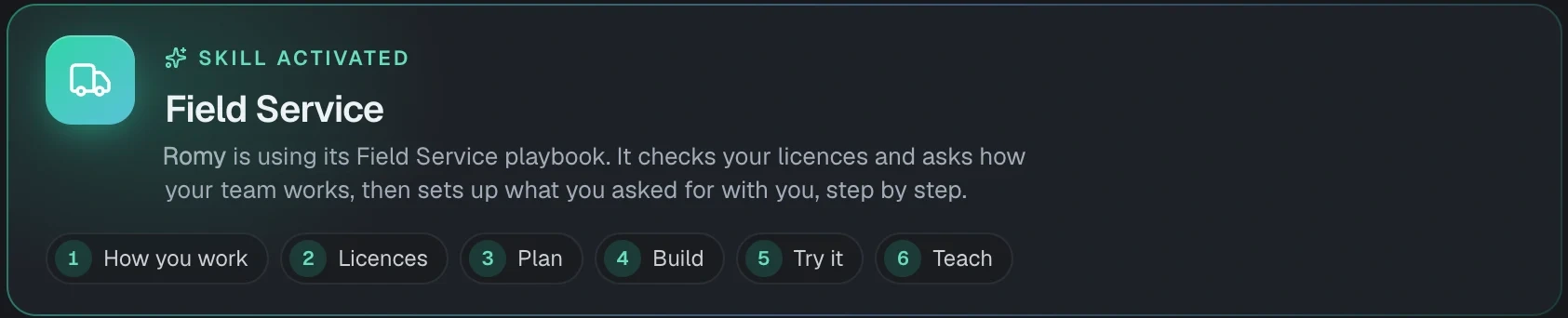
Skill activated
Field Service
Romy is using its Field Service playbook. It checks your licences and asks how your team works, then sets up what you asked for with you, step by step.
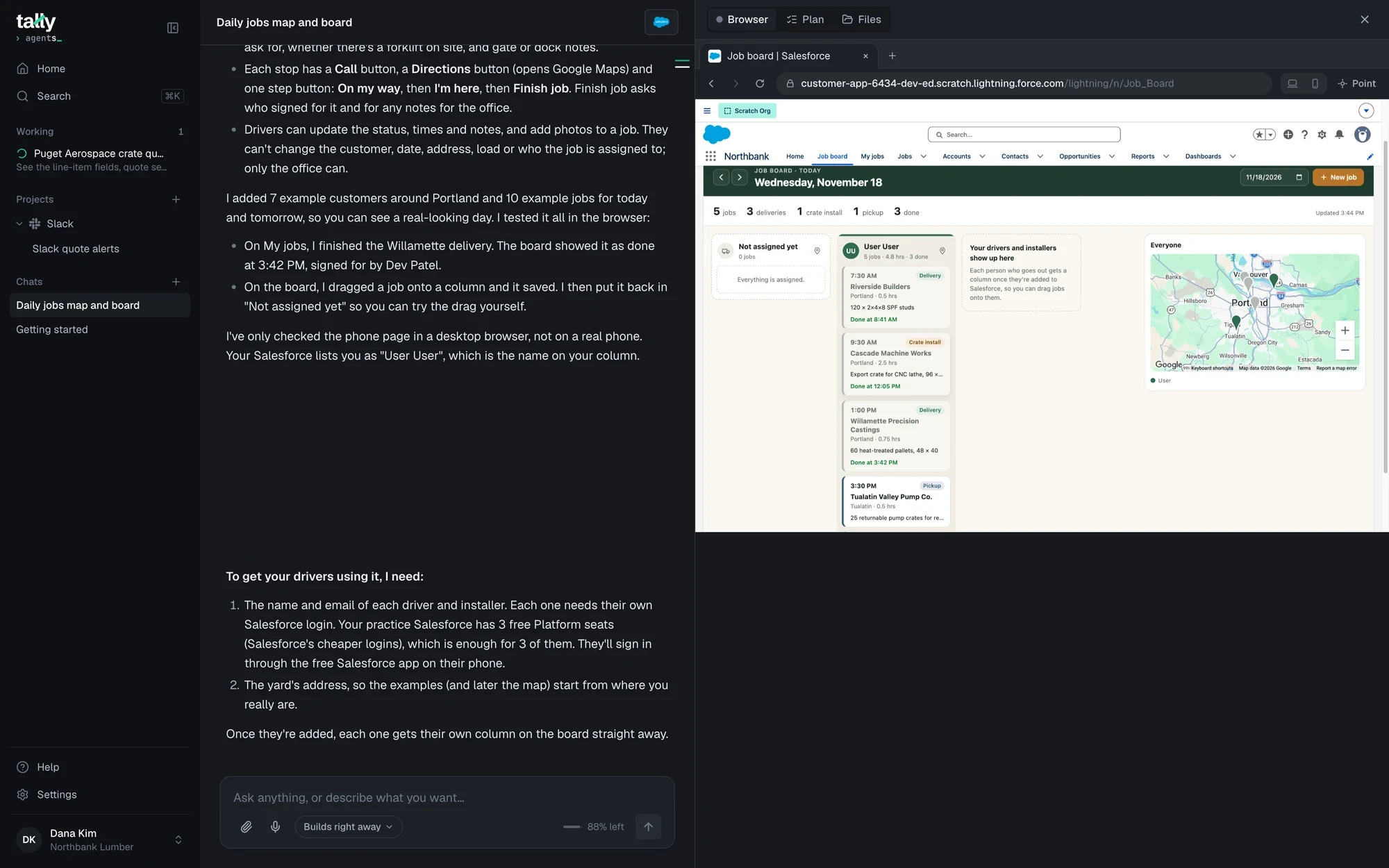
What came out of that chat
- A board for the office: today's jobs, a column per driver, a map of the stops
- Drag a job onto a driver and it saves
- A page for each driver's phone: Call, Directions, then On my way, I'm here, Finish job
- Finish job asks who signed for it and for any notes for the office
- Drivers can add photos and notes, but can't change the customer, the date or the address
- 7 example customers and 10 example jobs, so the day looked real
- Tested: finished a delivery on the phone page and watched the board mark it done
- And it said what it hadn't checked yet: the phone page on a real phone
What the Field Service skill does licences first, a real job last
Salesforce's Field Service has its own words, licences and settings, and a lot of pieces that depend on each other. Romy knows the order they go in, and asks only what your Salesforce can't already tell it.
What it asks about
- Kinds of jobs and how long each takes
- How work comes in today
- Who goes out, alone or in crews
- Where each person starts the day
- Arrival windows you promise
- Photos, checklists, a signature
- Parts in the van
- Invoicing afterwards
It learns how your team works
Who goes out, where they start, what happens at the job. One or two questions at a time, or a short form when a list is easier to fill in.
It checks your licences first
Field Service comes with some Salesforce editions, and the board, the scheduler and the phone app each need their own licence. If yours doesn't have one, Romy tells you the nearest way that works and you choose.
It says back the plan
In your words, in the Plan tab, in the order the pieces depend on each other.
It builds and shows each piece
On a real record: the example job, the area with its map, the board with a visit on it, each with a line on what it's for in your day.
It tries a real job with you
From the call to the job done: the office books it, it's scheduled, the driver sees it, arrives, finishes, the customer signs. Then the test job is cleared away.
It leaves guides
One for the office and one for the people out on jobs, plus a training video if you want one.
From the playbook
Learned the hard way, so you don't have to
A tech can go missing from the scheduler, with no error
Being schedulable takes several things at once: an active login, the scheduling licence and permission, a technician record, a home area with an address on the map, and the job's skills. Miss one and they simply don't appear. Romy checks for all of them.
The phone app doesn't show the page you designed
Salesforce's Field Service app takes its fields from an older kind of layout, set per profile. So what a tech sees on the phone is set separately, and they sign out and back in to see a change.
In your live Salesforce, a test job is real
It lands on the real board and runs your real automations, emails included. So the test customer is named as a test, with your own email on it.
No map point, no travel time
An address Salesforce hasn't placed on the map gets no travel time, and the scheduler treats it as doable from anywhere. Romy checks the addresses turn into map points.
And Agentforce
Want an AI assistant in your Salesforce? Romy reads up on that too
An assistant that answers your customers on your website, or helps your team inside Salesforce, is Salesforce's Agentforce. Romy has notes for building one, read from Salesforce's own guides. It isn't a guided setup, so there's no card: Romy opens the notes when the work calls for it.
- It checks your Salesforce can run one before writing anything, and says plainly what it would take if not
- It tries it with your customers' real wording: typos, two questions in one, an off-topic question
- It explains how Salesforce charges for it and where to see the usage
- Every version is kept, so an earlier one can be switched back on
Questions about skills
Do I have to pick a skill?
I only want one small thing. Will it do the whole setup anyway?
Why only three?
Do I need Field Service licences?
Will my team get emails while it's being set up?
Can I undo what a skill builds?
Tell Romy what you want set up in your own words
Free until Q2 2027. Bring your own Claude or ChatGPT plan, no token charges.